


Table of Contents
Site URL: https://xrealguide.wixsite.com/unofficial - Note: Add /unofficial to the end of the site URL to access any page. Without it, you’ll get a 404 error.
Website is best viewed on a desktop using a Chromium-based browser.

Website Last Updated: 09-17-2026
Latest News: (07-10-2026) - xbx a01+ Is Here. Just Play.
Date Format: MM-/DD-YYYY

Quick Navigation Links:
- How to Root INAIR Pod + Firmware Files
⚠️ IMPORTANT ⚠️
I am not responsible for any damage to your device. Rooting and/or flashing firmware files on the INAIR Pod is risky, so proceed at your own risk.
Rooting the device or unlocking the bootloader voids your warranty. The warranty does not cover rooted devices or devices with unlocked bootloaders.
What to Know Before Rooting or Unlocking the Bootloader (Check Back After Rooting for Steps)
Note: Rooting your device or unlocking the bootloader can cause the issues listed below. This may affect DRM streaming and banking apps. Some streaming apps may block access or updates, and banking apps are usually stricter about root detection. Because of this, the solutions below may not fix every issue. You may also need to keep modules updated from time to time to continue meeting app requirements.
-
Data Wipe:
Rooting or unlocking the bootloader will result in a full data wipe on the INAIR Pod. Be sure to back up all important data before proceeding. Once the firmware is flashed, all existing data will be permanently erased. -
Google Play “Device not certified” issue:
You can check your certification status in Google Play Store > Profile icon > Settings > About (scroll to the bottom for Play Protect certification).
If it says Device is not certified, try tapping “Fix device issue.” -
If certification still fails:
You may need to install the YuriKey Magisk module, along with any additional modules required for Strong Integrity.
Refer to the “How to get Strong Integrity?” section here:
https://github.com/Yurii0307/yurikey?tab=readme-ov-file#how-to-get-strong-integrity-
Alternative: Check out Integrity-Box from GitHub if YuriKey does not help you pass Strong Integrity.
Integrity-Box Requirements:
- Tricky Store or TEE Simulator
- ReZygisk
Note: You do not need both YuriKey and Integrity-Box installed at the same time. Choose one method and install the required modules for that method. Disable or uninstall any modules you no longer need to avoid conflicts.Warning: Rooting or lack of certification may prevent some apps (banking, streaming, etc.) from working. Compatibility is not guaranteed, and Play Integrity status should be checked at least once a month.
-
Play Integrity levels:
Google Play Integrity has three levels:
Basic Integrity, Device Integrity, and Strong Integrity.
Most apps work with Basic or Device Integrity, but some require all three.To check:
-
Open Google Play Store
-
Profile icon > Settings > About
-
Tap Play Store version multiple times to enable Developer Options
-
Go to General > Developer Options > Play Integrity > Check integrity
-
Passing all checks will show:
MEETS_BASIC_INTEGRITY, MEETS_DEVICE_INTEGRITY, MEETS_STRONG_INTEGRITY
Alternative (Easier) Way to Check Google Play Integrity:
You can use the “Play Integrity API Checker” app from the Google Play Store to quickly check your device’s integrity status
-
-
Hiding root (Recommended):
You may need to hide Magisk to prevent root detection. This can be done in Magisk settings, which renames the app, often to “Settings”, and changes the app’s package name to something unique so it’s less likely to be detected.
Find Your Build Number (INAIR Pod)
Android Settings → General → Next to “System update” at the very top, it should show “Current Version”
------------------------------------------------------------------------------------------------------------
Developer Options (INAIR Pod)
Enabling developer options...
-
Android Settings > About device > scroll down to “SN” > tap “SN” 7 times
Accessing developer options...
-
Android Settings>General>Developer options
Enabling OEM unlocking...
-
Developer options>OEM unlocking>toggle switch on right side.
Enabling USB Debugging...
-
Developer options>USB debugging>toggle switch on right side.
------------------------------------------------------------------------------------------------------------
Patched Magisk Images (INAIR Pod)
⚠️Please select the correct patched Magisk .img file and rename the file to "magisk.img" to make the setup process simpler.⚠️

adb reboot bootloader
fastboot boot magisk.img
adb devices
adb reboot bootloader
fastboot flashing unlock
List of ADB / Fastboot Commands:
-
adb devices
Lists all devices currently connected to your computer via ADB and confirms whether the device is detected properly. -
adb sideload path_to_partial_OTA_filename.zip
Installs a firmware or update package from your computer to the device while it is in recovery mode. Replace path.zip with the actual file path. -
adb reboot bootloader
Reboots the device directly into bootloader / fastboot mode. -
adb reboot recovery
Reboots the device directly into recovery mode. From recovery, you can sideload firmware updates or wipe data / factory reset. -
fastboot flashing unlock
Unlocks the device bootloader. This will wipe all data on the device. -
fastboot flashing lock
Re-locks the device bootloader. This may also trigger a data wipe depending on firmware and device state.
------------------------------------------------------------------------------------------------------------
How to install platform tools...
How to Root INAIR Pod:
⚠️ IMPORTANT ⚠️
I am not responsible for any damage to your device. Rooting is risky — proceed at your own responsibility. Rooting VOIDS your warranty. Warranty DOES NOT cover rooted devices.
Rooting
-
Install the latest Magisk APK on your INAIR Pod.
-
Make sure you've unlocked the bootloader. Instructions above under "Unlock Bootloader."
-
Look at the top left section (desktop version of site) and download the appropriate patched magisk file for your "Build number." (Android Settings → General → Next to “System update” at the very top, it should show “Current Version”)
-
Rename the patched magisk .img file to "magisk.img."
-
Place the "magisk.img" file to your platform-tools folder on your computer.
-
On your computer, open Terminal/Command Prompt in platform-tools folder and type:
Opening Magisk app...
If successful booting magisk.img, open the Magisk app:
-
If you get a message saying an additional step is required, just ignore it and cancel for now.
-
Tap Install → Direct Install → Reboot. (Check images below to see install location.)
-
If prompted again with 'Additional step required' after a reboot, go ahead and accept it this time.
Updating Without Losing Root
-
Before updating to latest INAIR Pod firmware, open Magisk → Uninstall → Restore Images.
-
Perform the OTA update. DO NOT reboot when INAIR Pod Firmware update is complete.
-
Before rebooting your INAIR Pod, open Magisk → Install → Install to Inactive Slot.
-
Now you can reboot your INAIR Pod.
🎉 Congrats! Your INAIR Pod is now rooted!
Unlock Bootloader ⚠️(Wipes all data)⚠️
-
Enable Developer Options.
Check top left side (desktop) "Developer Options." -
Enable USB Debugging and OEM Unlocking.
Check top left side (desktop) "Developer Options." -
Connect INAIR Pod to PC.
Note: If this is your first time connecting the INAIR Pod to your computer with USB debugging enabled, you’ll see a pop-up on the INAIR Pod touch screen asking you to allow USB debugging. Check the “Allow USB Debugging” section in the image of the INAIR Pod above for what the pop-up should look like. -
In platform-tools folder, open Terminal/CMD and type:
-
Confirm on the INAIR Pod touch screen. After the device reboots, continue with the “Rooting” section below.
Requirements
-
Computer with Internet access
-
Platform Tools (ADB/Fastboot)
-
Reliable USB cable
-
Google USB drivers (Windows)
-
Magisk APK (for INAIR Pod)
Dowloads:
Check video on left side for instructions.
-
Magisk APK (for INAIR Pod.)
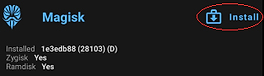
Check "Opening Magisk app..." above
and/or "Updating Without Losing Root"
below for more info.

Check "Opening Magisk app..."
Check "Updating Without Losing Root."
Partial OTA/Firmware Files (INAIR Pod)
-
Partial OTA: Sideload this if updating from a previous firmware version.
-
Firmware Files: If you need to flash a specific .img file, etc.
-
Full Firehose Flash Package: Use this for full Firehose/flash-mode restore.
Note: The Full Firehose Flash Package is for advanced users only. Do not use it unless you understand Firehose/flash-mode firmware flashing and know how to recover the device if something goes wrong.